Blog / Stop wasted ad spend
Amazon search term report: how to download it and read it
You know the Amazon search term report is where wasted spend shows up. Then you open the Ads console, see a list of report types, and aren't sure which one it is or what to look at once it downloads. This guide covers getting the file and reading it.
Updated 2026-11-27
The short answer
The Amazon search term report lists the searches shoppers typed that led to at least one click on your Sponsored Products ads. Download it from Reports in the Amazon Ads console (from Seller Central India, go through Advertising). Read it in three passes: clicks with no orders, terms that sell, and terms that need more data.
What the search term report shows
Your keywords are what you bid on. Search terms are what shoppers actually typed. Amazon describes the report as the shopping terms customers used that resulted in at least one click on your ad (Sponsored Products best practices, Amazon Ads, read 27 November 2026). A search that showed your ad but got no click is not in it.
The gap between keyword and search term is where the money goes. A broad or phrase keyword, or an auto campaign, can match searches you would never have picked, and this report is where you see them. For a short definition, see the glossary entry on the search term report.
How to download it, step by step
Sellers in India reach the same console two ways: open the Amazon Ads console directly, or log in to Seller Central India and open Advertising, then Campaign Manager. Then:
- Open Reports (sponsored ads reports) in the left menu of the Ads console.
- Click Create report.
- Choose Sponsored Products as the ad product and Search term as the report type.
- Pick a date range. Thirty days is a fair start; take a longer range if your campaigns get few clicks a day.
- Run the report, wait for it to finish, and download the file.
The columns that matter
The file has more columns than you need. For decisions, these are enough:
| Column | What it tells you | Use it for |
|---|---|---|
| Customer search term | What the shopper typed (or an ASIN, for product page clicks) | The thing you will negate or harvest |
| Targeting and match type | Which of your keywords or targets matched it | Finding the keyword that lets waste in |
| Impressions and clicks | How often it showed and got clicked | Judging whether there's enough data yet |
| Spend | What those clicks cost | Ranking terms by money at stake |
| Orders and sales | What sold within the attribution window | Separating sellers from waste |
| ACoS | Spend divided by sales | Comparing against your target |
Column names vary a little between report versions. ACoS is explained in the ACoS glossary entry.
Sort by spend, highest first. The top rows hold most of the money, and that's where your hour is best spent.
Read it in three passes
Pass 1, clicks and no orders. Filter orders to zero and sort by clicks. A term with many clicks and nothing sold is either irrelevant (wrong product, wrong size, a brand you don't sell) or relevant but not converting yet. Mark which is which.
Pass 2, terms that sell. Filter orders to one or more and sort by ACoS. Terms selling below your target ACoS that are not already exact keywords are your harvest list.
Pass 3, the middle. Terms with a few clicks and no orders go here. Most of them need more data, not action.
Negate now, or wait?
| What you see | Do this |
|---|---|
| Term is clearly irrelevant to your product | Negate it now, whatever the click count |
| Relevant term, clicks well past what you usually need per order, no orders | Negate it, or lower the bid on the keyword that matched it |
| Relevant term, only a few clicks | Wait and check it again next week |
| Term sells at an ACoS under your target | Harvest it as an exact keyword |
| Term sells, but above your break-even ACoS | Lower the bid before you scale it |
Rules of thumb, not Amazon policy. Set your own click threshold from your conversion rate.
The blocking steps, including the click threshold and when to use negative exact or negative phrase, are in how to block wasted search terms. To find the ACoS a term has to beat, work out your break-even ACoS first.
Harvesting winners into keywords
Amazon's own advice is to check the search term report for keywords with higher sales and conversion rate, increase the bid on those and add them as exact match (Sponsored Products best practices, read 27 November 2026). In practice:
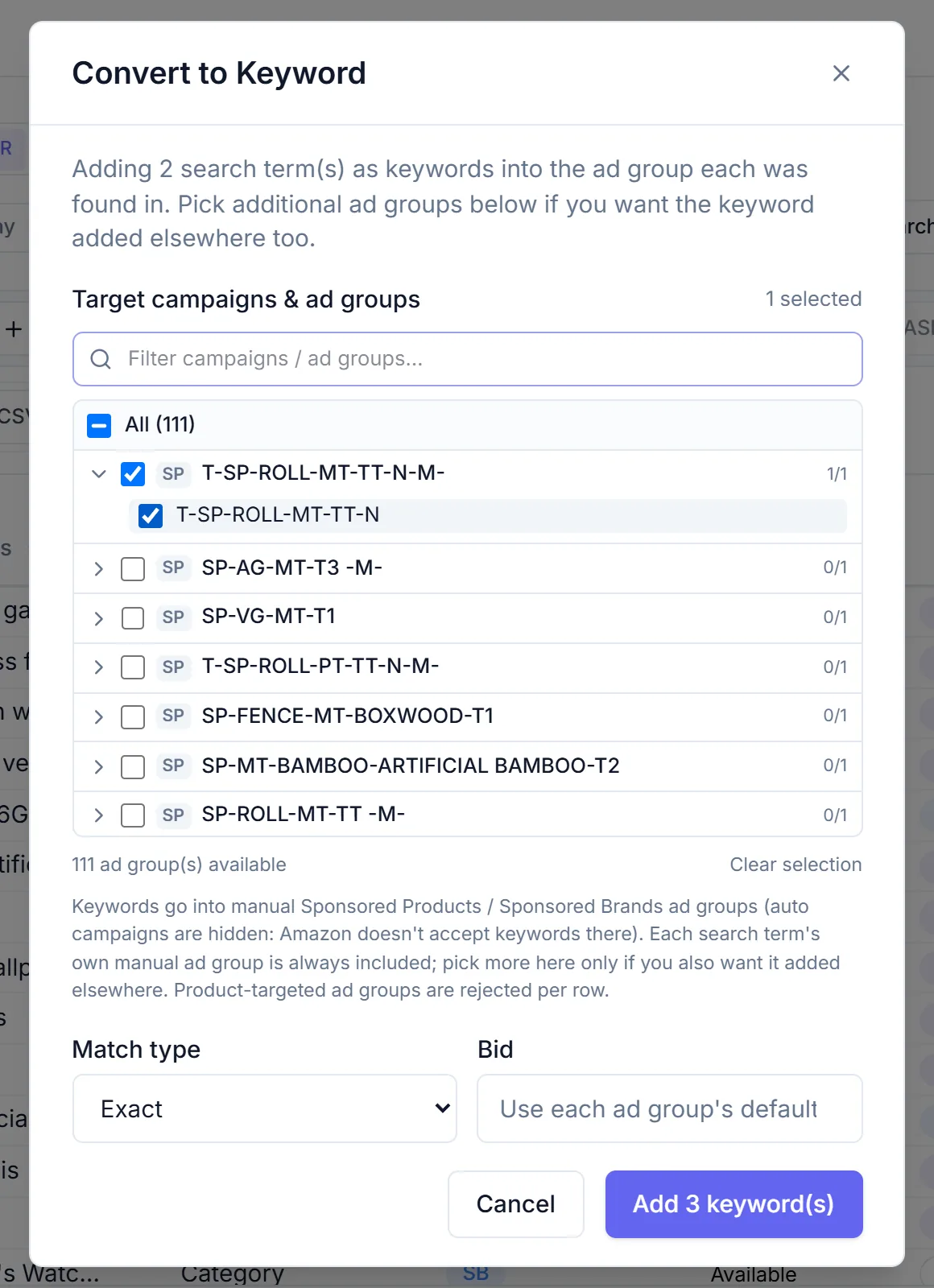
- Add the search term as an exact keyword in a manual campaign.
- Set the bid from what the term earned, not the default bid. The ACoS calculator helps here.
- Add the same term as a negative exact in the source auto or broad campaign, so your two campaigns don't bid against each other.
- Check the new keyword after a week or two.
Doing this without the spreadsheet
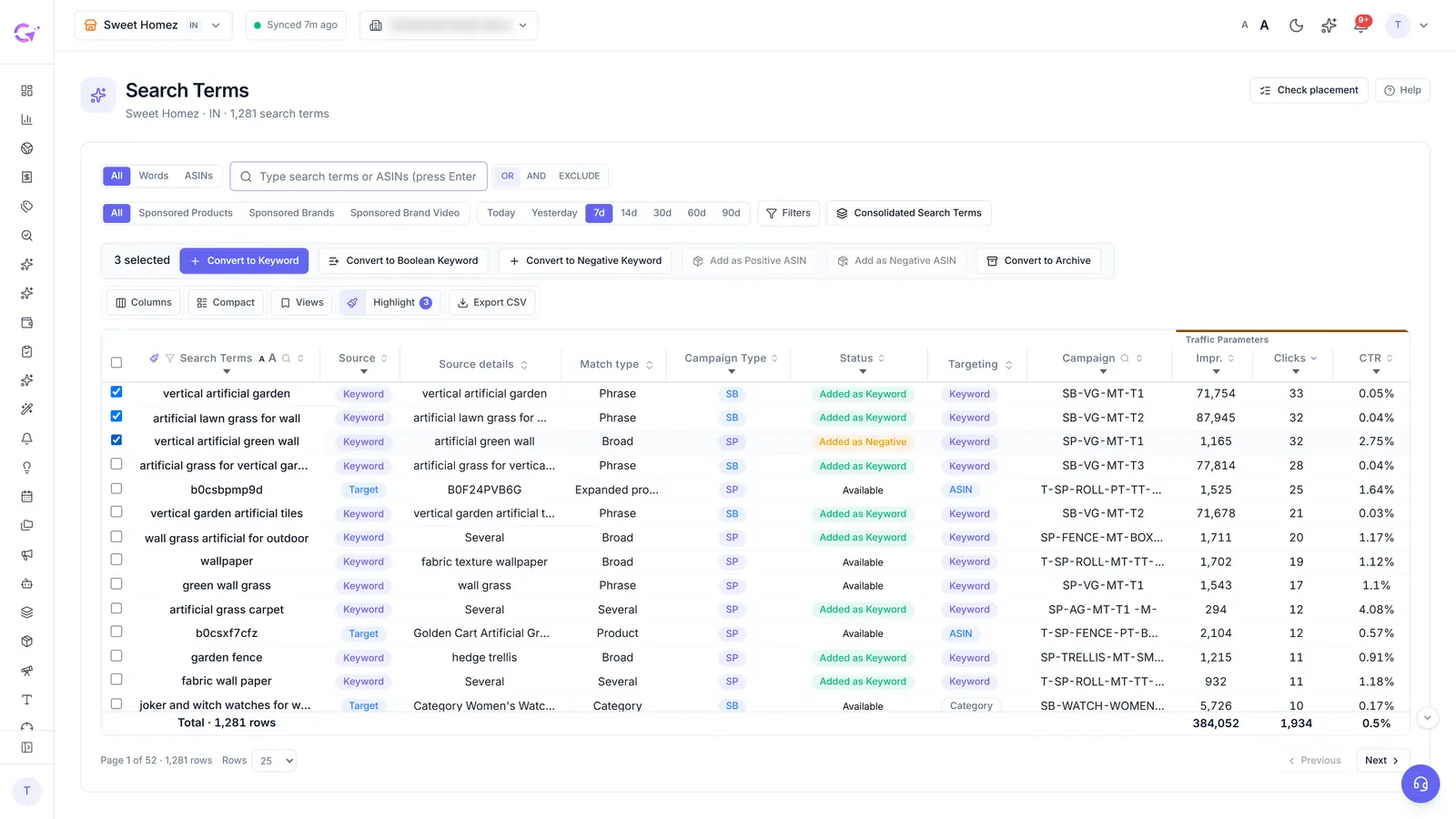
The report is a file, so every pass above happens in Excel, and every change goes back by hand or by bulk sheet. Search Terms in CreatAiGenie shows the same data from your Sponsored Products and Sponsored Brands reports in one table, totals each term across campaigns, and lets you negate or convert in bulk. Each change is logged with a roll back button.
Not sure where your account leaks first? The free PPC audit runs the clicks-no-orders pass for you. If you're comparing tools, see the best Amazon PPC software in India.
Questions people ask
Where do I find the search term report on Amazon?
In the Amazon Ads console under Reports. Create a report, choose Sponsored Products and the Search term report type, pick a date range and download it. From Seller Central India, open Advertising, then Campaign Manager, to reach the same console.
Why is a search term missing from my report?
The report only lists search terms that got at least one click on your ad. Searches that showed your ad without a click are not included.
How often should I check the search term report?
Weekly suits most accounts. Small accounts need longer date ranges before most terms have enough clicks to judge.
Should I negate every search term with no sales?
No. Negate irrelevant terms at once, but give relevant terms enough clicks first. Blocking a relevant term too early can cut off a search that would have sold.
What is keyword harvesting on Amazon?
Taking search terms that already sell in an auto or broad campaign and adding them as exact match keywords in a manual campaign, usually with the same term negated in the source campaign.
Check it in your own account
See pricing · Get a free PPC audit · Start a 14-day free trial