Blog / Stop wasted ad spend
How to find and block Amazon search terms that waste your budget
"they just burned through budget on trash keywords lol." That's a seller on Reddit describing an agency. It happens just as easily with no one to blame.
Updated 2026-11-13
The short answer
Download your search term report, list every term with clicks and no orders, and flag the ones past about twice the clicks you normally need per order. If you convert at 10%, that's 20 clicks. Negate irrelevant terms as negative exact, use phrase only for words you never want, and move proven converters into exact match.
What counts as a wasted search term
“they just burned through budget on trash keywords lol.”
r/FulfillmentByAmazon, ~2025-02
A search term is what the shopper typed. A keyword is what you bid on. Broad, phrase and auto targeting all match your ads to searches you never chose, and some of them will never buy your product. Those are the ones to block. If you haven't yet worked out whether your problem is waste or the listing itself, start with Amazon ads spending but no sales.
Zero orders alone isn't enough to block a term. Five clicks with no order is normal for most products. The line should come from your own conversion rate: if you usually get one order per N clicks, a term that has taken about 2N clicks with nothing is unlikely to be unlucky.
| Your conversion rate | Clicks per order, usually | Review a zero-order term at |
|---|---|---|
| 5% | 20 | about 40 clicks |
| 10% | 10 | about 20 clicks |
| 15% | 7 | about 14 clicks |
A second line that works for expensive clicks: flag any term whose spend with no orders is above what one order is allowed to cost (price x target ACoS). For a ₹999 (about $10.57) product at a 30% target, that is about ₹300 (about $3.17).
The manual method: report, sheet, bulk upload
- In the Amazon Ads console, go to Reports and create a Sponsored Products search term report for the last 30 or 60 days. Download it.
- Open it in a spreadsheet. Keep the columns for campaign, ad group, targeting, match type, search term, clicks, spend and orders.
- Filter orders to zero. Then filter clicks to your threshold from the table above, or spend to your cost-per-order line.
- Read each remaining term. Keep the ones that describe your product but didn't convert (they point to the listing or price). Mark the irrelevant ones: wrong size, wrong material, other brands, other product types.
- Download a bulk sheet from Bulk operations, add one row per negative with the campaign and ad group IDs, the term, and negative exact or negative phrase as the match type, then upload it.
Done weekly, this takes an evening for a mid-sized account. That evening is the real cost, and it is why most sellers stop doing it after a month.
“bid automation eating my evenings, not the dashboards”
r/PPC, 2026-04-30
Negative exact or negative phrase?
Negative exact blocks one search and nothing else. Negative phrase blocks every search that contains the words in that order. Exact is the safe default. Phrase is powerful and easy to get wrong.
- Use negative exact for a specific search that wastes money, like a long term with a size you don't sell.
- Use negative phrase for a word that can never mean your product, such as "used", "refill" or another brand's name, and only after you've checked it doesn't also appear in searches that convert.
- Never negate your own brand name or your best converting root word. One phrase negative on a single common word can cut off a big share of your traffic overnight.
- For product targeting and auto campaigns, block ASINs that take clicks and never convert as negative product targets, not keywords.
Where you add the negative matters too. Ad group level blocks the term in that ad group only, which is what you want when the same search is fine for a different product elsewhere in the campaign. Campaign level blocks it for every ad group in that campaign. Start at ad group level, and move a negative up only when it keeps showing up across ad groups.
Negatives also pile up. After a year of weekly blocking, most accounts have duplicates at both levels, a few that block terms which now convert, and sometimes one on the seller's own brand. Every few months, export your negatives and read the list once.
Harvest the winners while you are in there
The same report shows the opposite case: searches from auto or broad campaigns that already sell. Add those as exact keywords in a manual campaign so you control the bid. Then add the same term as a negative exact in the campaign it came from, so the two campaigns don't bid against each other for the same shopper.
A sensible bar for harvesting is two or more orders at an ACoS under your target. To work out what bid that new exact keyword can afford, use the ACoS calculator.
Doing it in CreatAiGenie
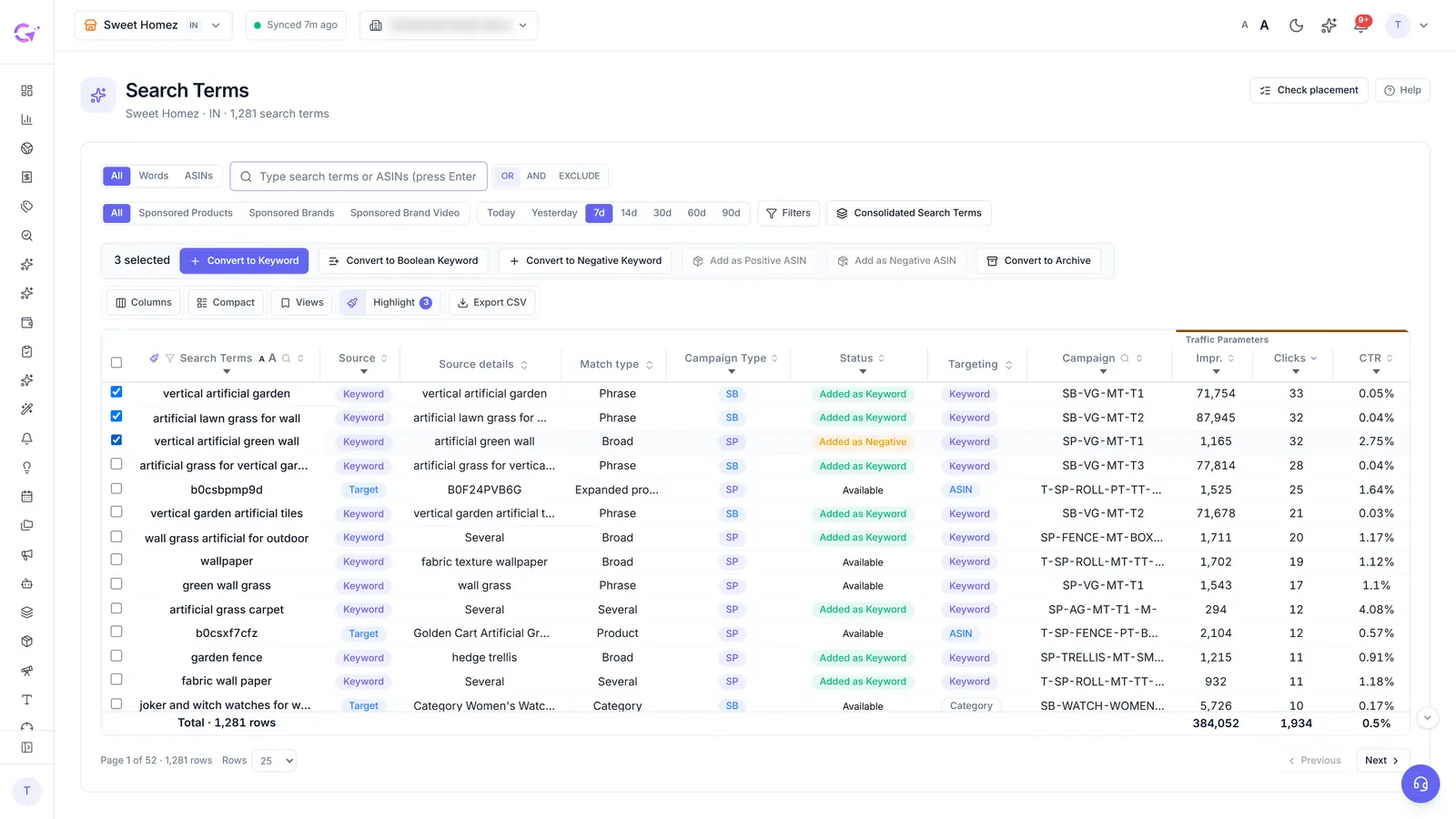
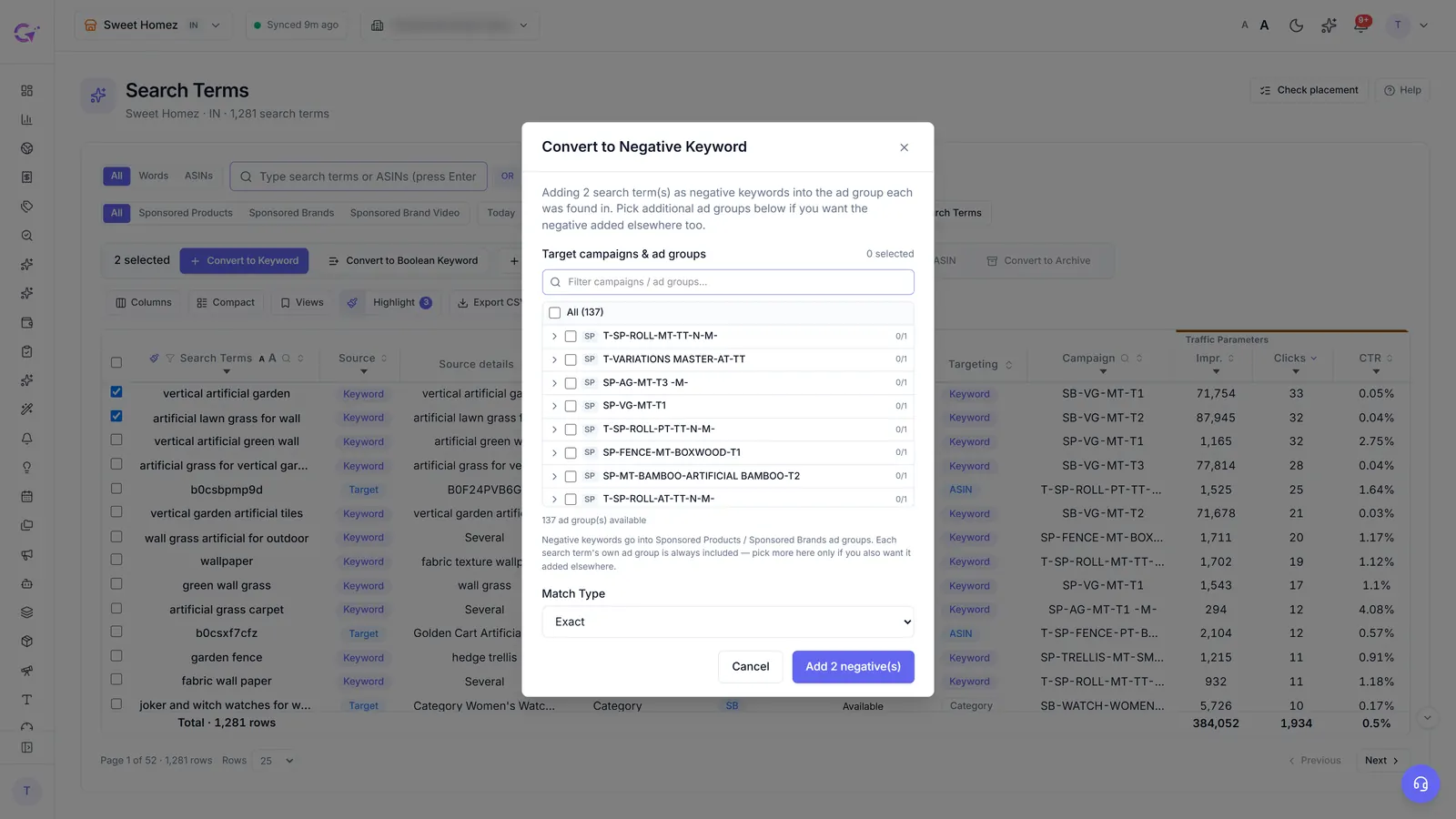
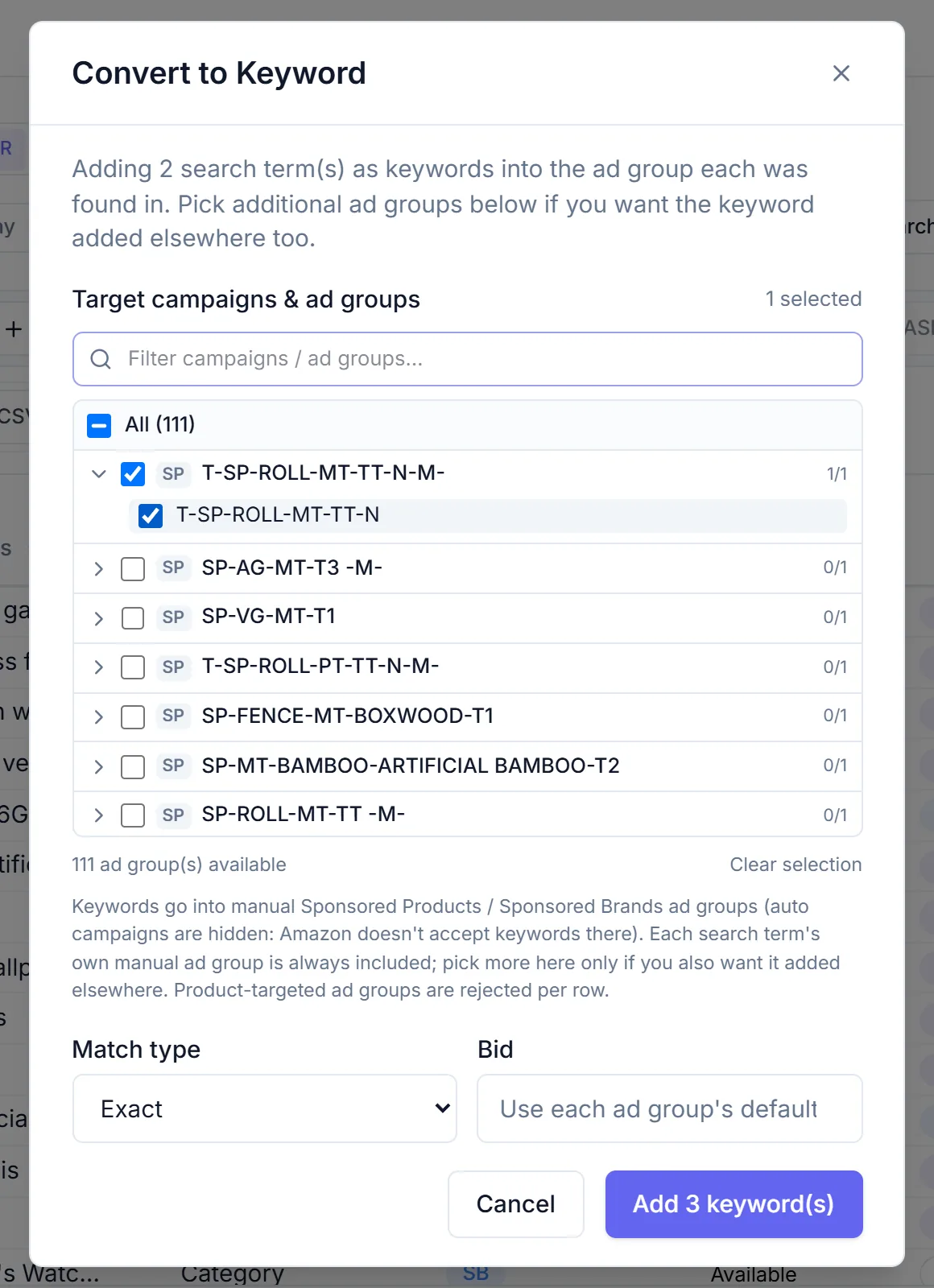
Search Terms shows every search term from your Sponsored Products and Sponsored Brands reports in one table, with filters on any metric and a consolidated view that totals each term across all campaigns. Select the terms, then convert them in bulk. There's no download or upload.
Letting it run, and cleaning up old negatives
If you'd rather not filter at all, Suggestions lists search terms to add as negatives or as keywords every day, each with the clicks, spend and reason. AI Genie's Smart Negative Targets can negate wasted terms by a clicks-per-order threshold you set, in block mode or alert-only mode, with dry run on until you turn it off. Every negative lands in the Change Log with the reason, and you can roll it back if it blocked something you needed.
For the clean-up job, the Negative Keyword Audit lists every negative with its match type, whether it sits at ad group level, campaign level or both, and whether you, a rule or Genie created it. You can archive redundant ones in bulk. Archiving is permanent on Amazon, and the page says so before you confirm.
Search Terms and Suggestions are on every plan, including Basic at ₹3,500 a month before tax. The Search Terms help article covers each filter and dialog, and the comparison page shows how other tools price the same work.
Questions people ask
How often should I check my Amazon search term report?
Weekly for accounts with steady spend, every two weeks for small ones. Less often and the waste builds up; more often and most terms have too few clicks to judge.
Should I use negative exact or negative phrase?
Start with negative exact. Use negative phrase only for a word that can never describe your product, after checking it doesn't appear in your converting searches.
Can I negate search terms from Sponsored Display?
No. Amazon doesn't provide search terms for Sponsored Display, so negation by search term covers Sponsored Products and Sponsored Brands.
What if I block a search term by mistake?
In the console, archive the negative. In CreatAiGenie, roll it back from the Change Log, and the term shows as available again in Search Terms.
Check it in your own account
See pricing · Get a free PPC audit · Start a 14-day free trial