Blog / Bids and profit
Stop paying for Amazon ads when you lose the Buy Box or run low on stock
"A tool shouldn't touch my bids if it doesn't know my stock level." Fair. The same goes for a bid you set last month: it knows nothing about this morning's Buy Box or the last few units in the warehouse.
Updated 2026-11-10
The short answer
Check Buy Box share and days of stock for each advertised ASIN at least daily. Pause the ASIN's ads when its Buy Box share falls below 50% and resume once it's back at 80% or more. When the stock you have covers fewer days than your restock lead time, lower bids so you don't sell out early.
Why ads keep spending on products that can't sell
“A tool shouldn't touch my bids if it doesn't know my stock level”
r/FulfillmentByAmazon, thread 1kbocsp, 2026-01-30
Your campaigns run on the bids and budgets you set until something changes them. Your listing, meanwhile, can change several times a day. Three things catch sellers out:
- You lose the Buy Box. Amazon may stop showing your ads while another offer holds it, so this isn't always a big spend line. But Buy Box share moves during the day and is rarely all or nothing, and an ASIN with low or unstable share can still collect clicks on a page where shoppers can buy from someone else.
- A hijacker joins your listing. A new seller on your detail page can undercut you and take the Buy Box, while your ads keep paying to bring shoppers to a page you now share.
- Stock runs out, or nearly does. Out-of-stock and suppressed listings can keep drawing ad spend, especially when the same ASIN sits in several campaigns and nobody checks each one.
None of this shows up in the ads console as an error. It shows up weeks later as ACoS that drifted and nobody can explain. It's also why, when ads spend with no orders, the listing is one of the first leaks to check, before you touch a single keyword.
How to check it yourself
You don't need a tool for this. It's a quick daily habit with a handful of advertised ASINs and a real chore past a dozen.
- In Seller Central, open Reports, then Business Reports, then Detail Page Sales and Traffic by Child Item. Sort yesterday by Featured Offer (Buy Box) Percentage.
- Flag every advertised ASIN below 50%. Open the listing and see who holds the offer: a reseller on price, a hijacker, or Amazon.
- For stock, open your FBA inventory (or your own sheet for self-ship) and work out days of stock left: units available divided by average units sold per day over the last 30 days.
- Compare days left with your restock lead time. With 12 days of stock and a 20-day restock, lower bids on that ASIN now. Spending to sell out faster just widens the gap.
- Pause the product ad for each flagged ASIN in every campaign it sits in. In the console that means one campaign at a time. In a bulk sheet, filter the Product Ad rows by SKU or ASIN, set State to paused and upload.
Write down what you paused and why. When the Buy Box comes back you'll need that list, and memory is a poor change log. A shared sheet with the ASIN, the date, the Buy Box share or days of stock at the time, and the campaigns you touched is enough. Without it, resuming turns into guessing which pauses were yours and which someone made on purpose for another reason.
When to pause and when to resume
Use two thresholds, not one. Pause below 50% Buy Box share and resume at 80% or above. The gap stops an ASIN flipping on and off every time its share wobbles around a single line. Between 50% and 79%, leave the ads as they are and look at your price and the competing offer instead.
Stock is simpler. Lower bids as days left get close to your lead time, and pause before the last units go if a stock-out is certain. When new stock is live, bring bids back up in steps rather than all at once, so you can see what the restart is doing.
| What you see | What to do with the ads |
|---|---|
| Buy Box share below 50% | Pause the ASIN's product ads in every campaign |
| Buy Box share 50% to 79% | Leave ads as they are; fix price or the competing offer |
| Buy Box share back at 80% or more | Resume the ads you paused, nothing else |
| Days of stock left above your restock lead time | Bid as normal |
| Days of stock left below your restock lead time | Lower bids on that ASIN |
| Out of stock, or a stock-out is certain | Pause until new stock is live |
The 50% and 80% lines are the ones CreatAiGenie uses. The stock rules are a starting point; adjust them to your own lead times.
Pausing is the damage control. The fix is working out why the Buy Box moved. Check your price against the offer that holds it, whether your stock or fulfilment changed, and whether your account health dashboard shows anything new. If a seller you don't know appeared on a brand listing you own, treat it as a hijack and deal with it through Amazon's brand tools before you pay to send any more traffic there.
How CreatAiGenie does it with Seller Central data
With Seller Central connected, CreatAiGenie reads Buy Box share per child ASIN from Amazon's Sales and Traffic report, who holds the Buy Box from Amazon's pricing data, and your FBA inventory. Suggestions uses that data for these fixes:
- Buy Box lost: pause the ASIN's ads when its Buy Box share drops below 50%.
- Buy Box back: resume them once share is at 80% or more.
- Stock-aware bids: bid changes based on the days of stock you have left.
- Out-of-stock ads: ads still running for ASINs that have already sold out.
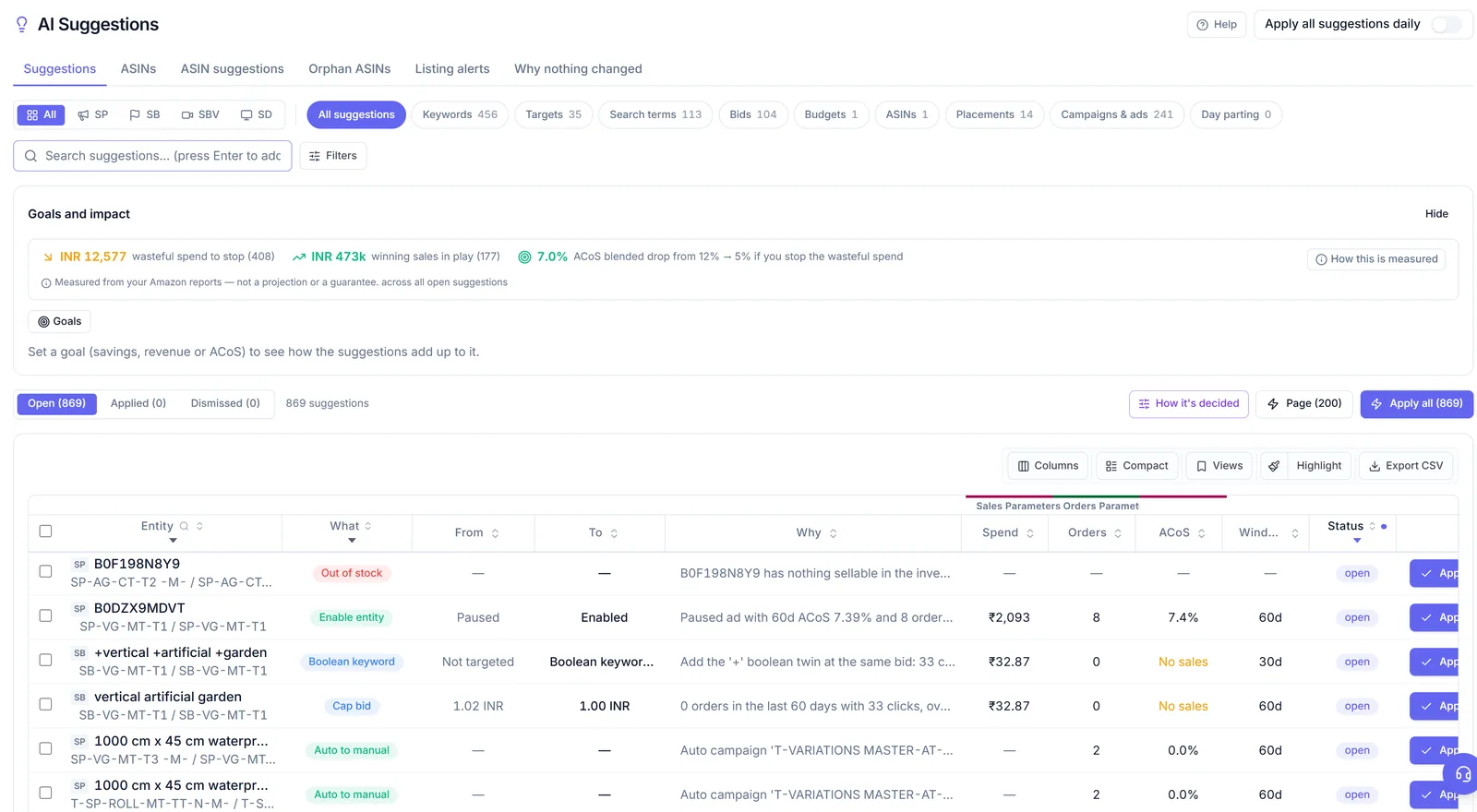
Nothing changes until you apply a suggestion, or until you switch on "Apply all suggestions daily", which stays off until you turn it on. Every applied change lands in the Change Log with the reason and a roll back. The Suggestions guide explains each type and how to tune the thresholds for your account.
Alerts for hijackers and stock-outs that keep spending
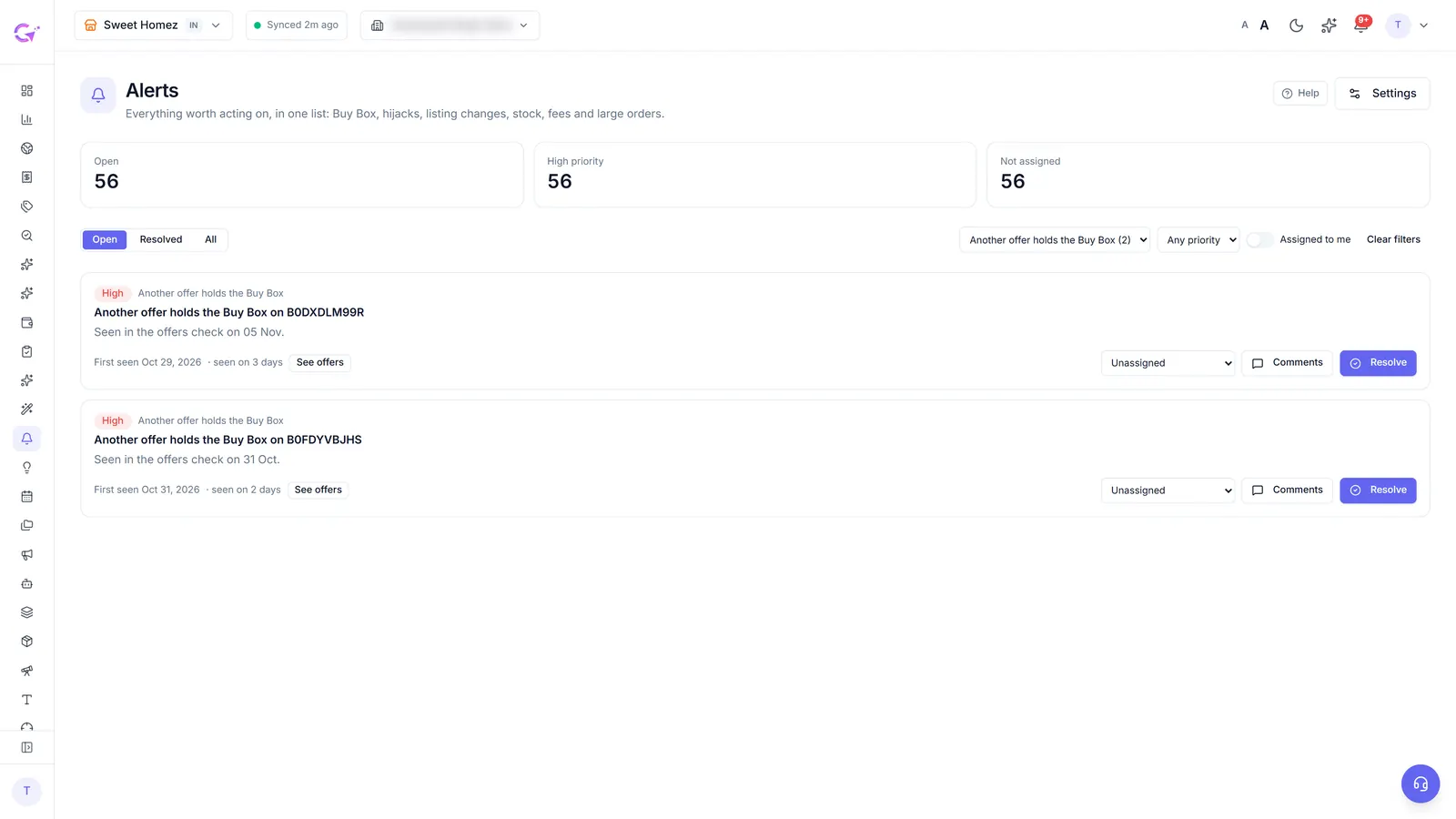
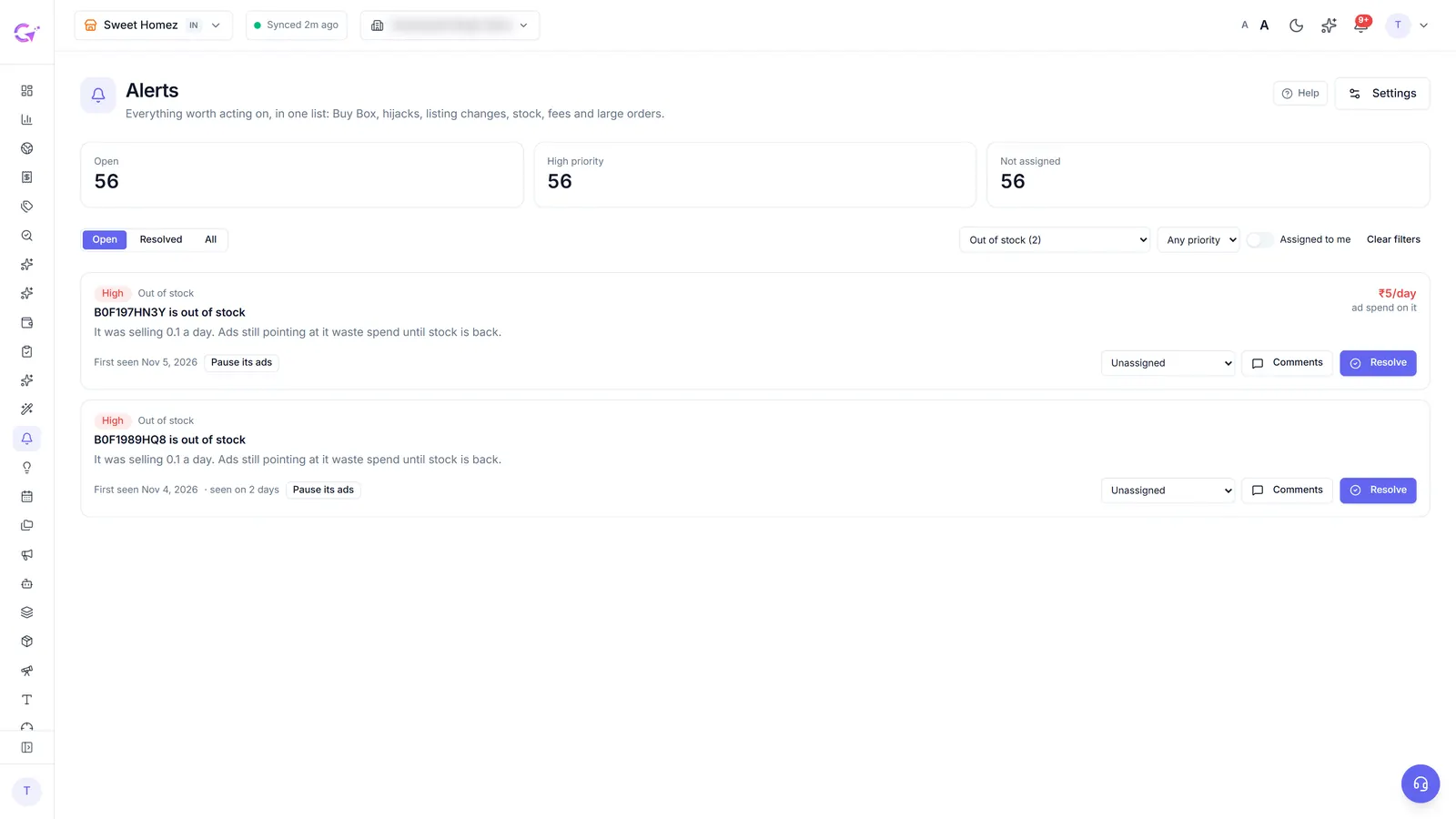
Some of this needs a person, not a bid change. A hijacker is a pricing or brand-protection job. The Alerts inbox flags when another offer holds the Buy Box, a new seller appears on your listing, stock is running out or gone, or a listing stops being buyable. Each alert shows the ad spend per day still going to that ASIN, so you can see what waiting costs.
Questions people ask
Does Amazon stop showing my ads when I lose the Buy Box?
Amazon may stop showing your ads while another offer holds the Buy Box. Share moves during the day, though, so ads on an ASIN with low or unstable share can still spend. Check share per ASIN daily.
Why resume at 80% instead of 50%?
A gap between the pause line and the resume line stops ads switching on and off every time Buy Box share wobbles around one number.
Can CreatAiGenie pause ads automatically when I lose the Buy Box?
It proposes the pause as a suggestion and you apply it. If you switch on Apply all suggestions daily, suggestions are applied once a day, at about 08:35 in your account's time zone (08:05 IST in India). It needs Seller Central connected, on Platinum or during the trial.
Check it in your own account
See pricing · Get a free PPC audit · Start a 14-day free trial